
Your roadmap to getting started
Getting started with a new app can feel like a lot. We’re artists too, and we get it.
This page is here to help you take the first steps.
If something feels confusing, pause here. Review the tutorials, follow the next small step, and reach out if you need help.
You’re not bothering us. Your question helps us make ENSOhello better.
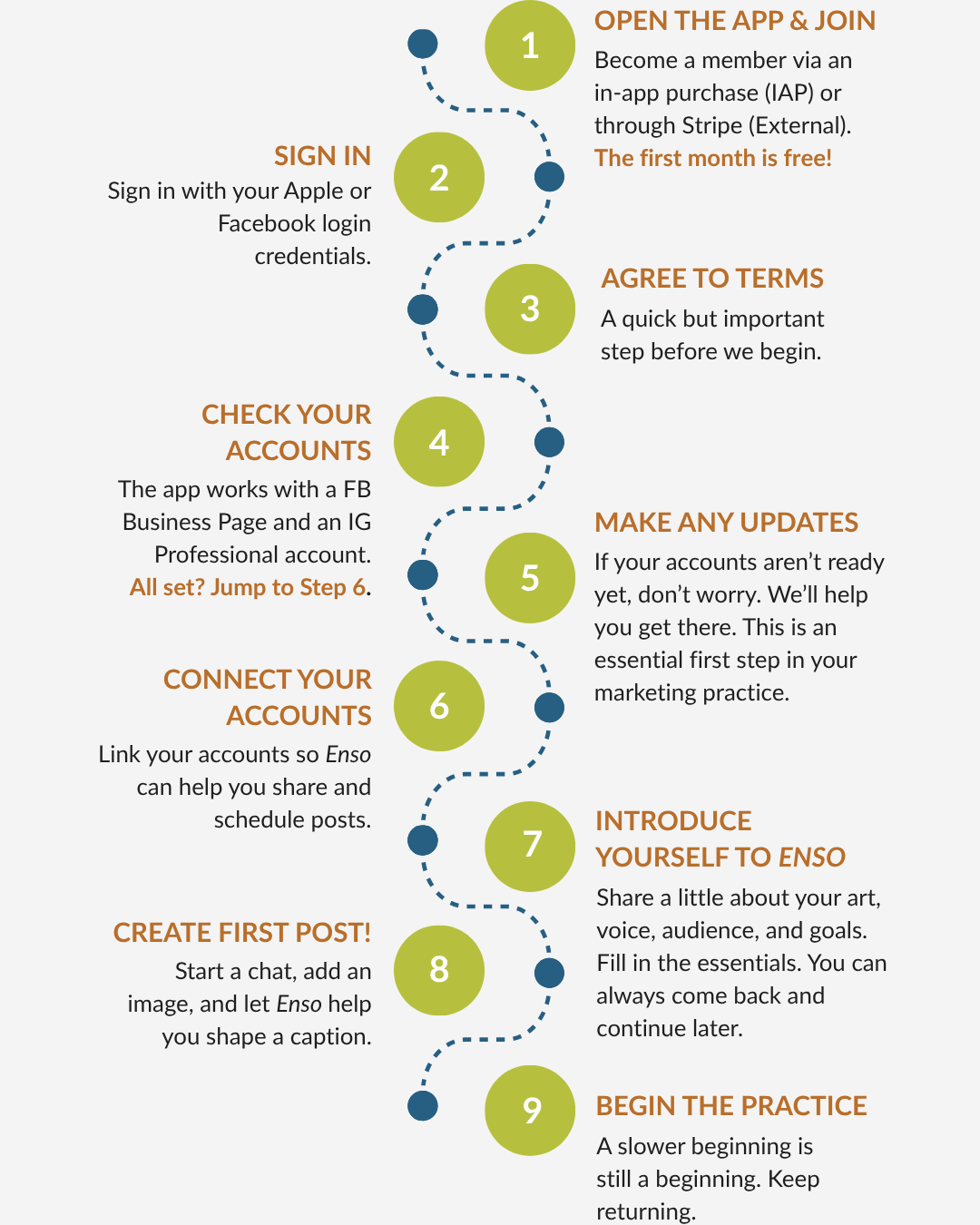
The Tricky Bits
Some parts of the setup can feel confusing the first time. These short videos walk you through the steps artists are most likely to need help with.
FACEBOOK: BUSINESS OR PERSONAL?
This is a quick check. We’ll show you how to confirm whether your Facebook account is ready for ENSOhello and to start your marketing practice.
INSTAGRAM: SWITCH TO CREATOR / PROFESSIONAL ACCOUNT
Instagram makes switching to a creator or professional account fairly simple. Follow the steps in this tutorial to switch your account.
SETTING UP A FACEBOOK BUSINESS PAGE
If you need to set up a Facebook business page for your art practice, this short video walks you through it. Setting up a new page usually takes about 10–15 minutes.
Need a hand?
During Founding Member Access, your questions are especially helpful. If something feels confusing, unclear, or harder than expected, please let us know. Your question may help us improve this page for the next artist who gets stuck in the same place.
Have a question or need a hand? Sometimes talking to another artist helps, so please reach out.
We’re here for you.
Once you’re set up…
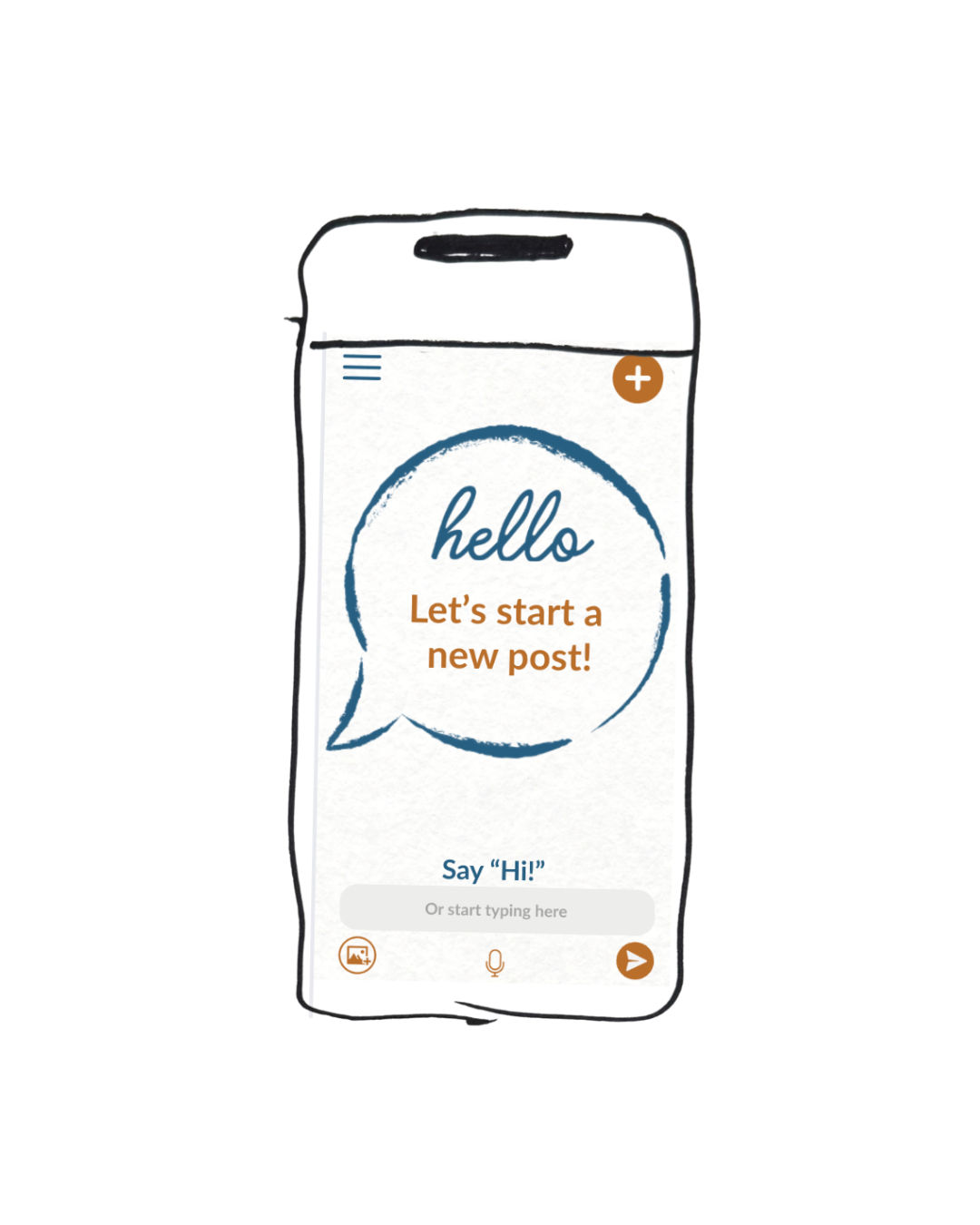
Connect your accounts in ENSOhello
Open the menu in the upper left corner
Click Social Accounts
Sign in to Instagram
Sign in to Facebook
Follow the prompts to connect your accounts
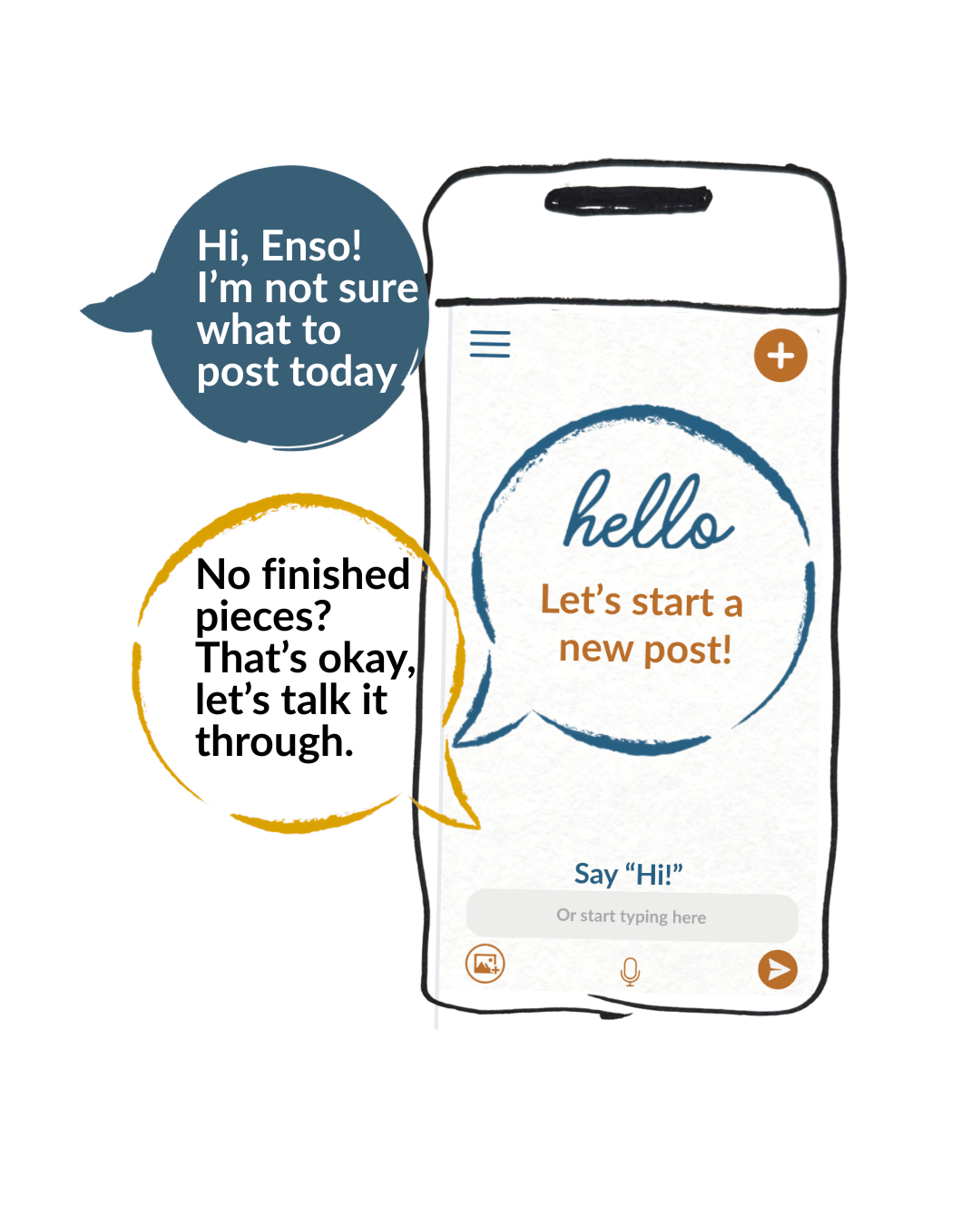
Create your first post
Click New Chat
Enso will ask you a few questions
Upload one image by clicking the photo icon in the bottom left
Review the post Enso creates
Make changes if needed
When you’re happy, click Approve
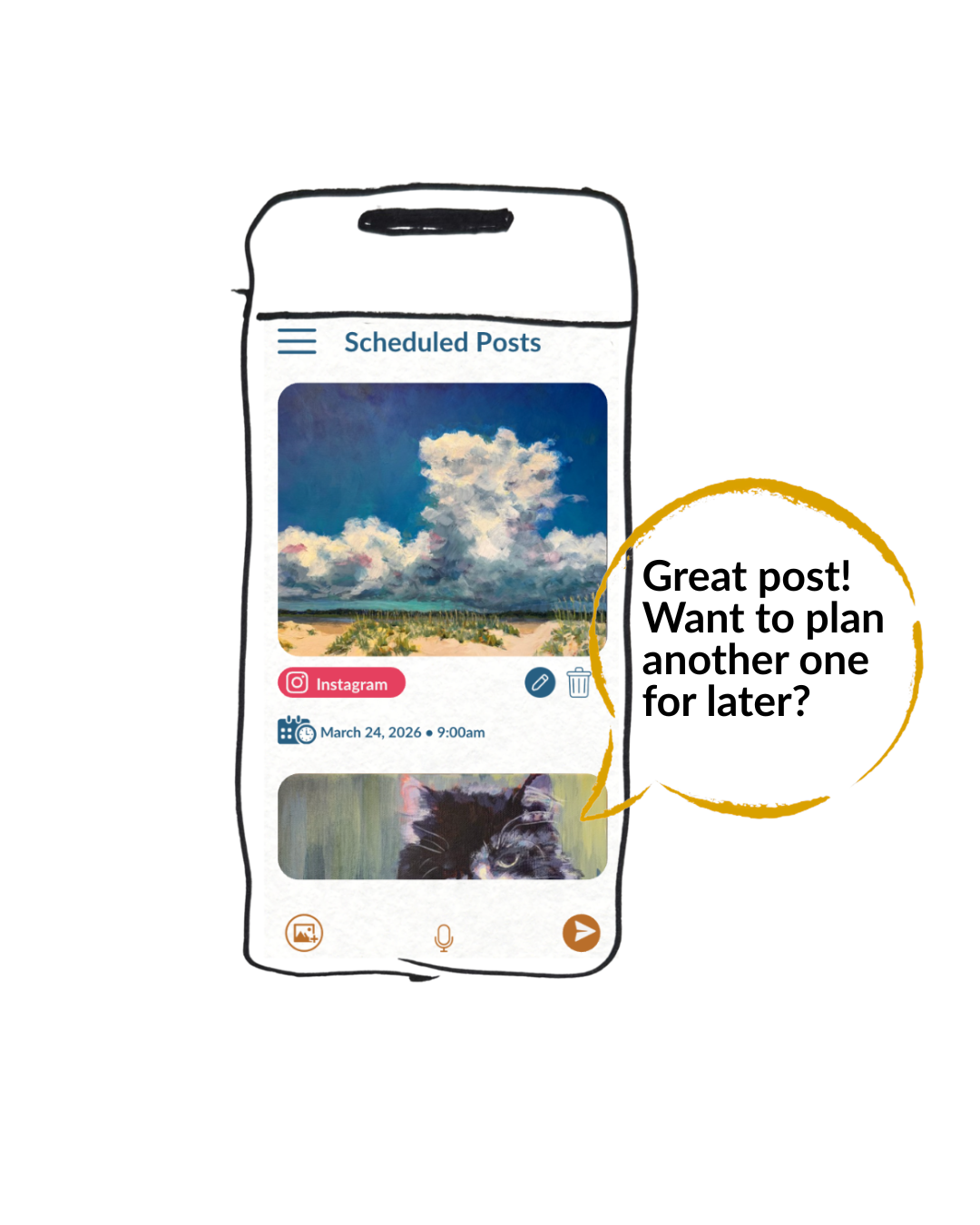
Schedule a post for later
When you’re chatting with Enso, ask her to schedule the post for a later day.
To review scheduled posts:
Open the menu in the upper left corner
Click Scheduled Posts
Review your upcoming posts
Future you will appreciate this.